Define a Rule
The Rule object contains the definition of a rule to identify geometric surfaces or quilts for later use within the coloring process.It
contains a collection of Objectives defined by Criterion and can be restrained by a Container.
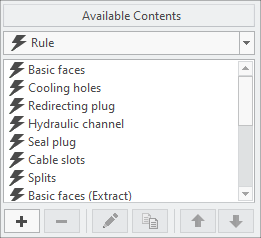
Adding Rules
- Select Add new object
 or select Edit existing objects
  or use
  to copy an existing entry and modify from there.
- The Rule Editor dialog appears.
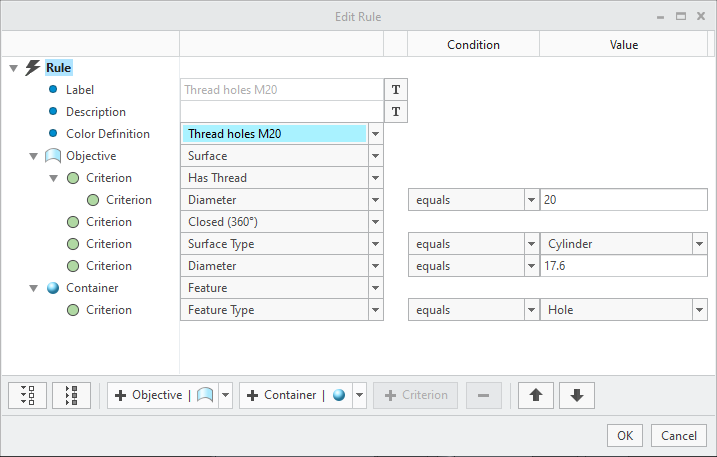
- The Rule Editor dialog appears.
- Select the Text entry
 button to enter the Label that is displayed in the user dialog.
 - Select the Text entry button to enter a Description that is displayed in the user dialog.
- Select a Color Definition from the drop-down list.
- Select Add Objective
 to add a new objective line to the rule. Choose one of the following types from the drop down list.
- Solid Surface
 Quilt Surface
 SHC surface set (Planned for later release)
- Select Add Criterion
 to add a restricting criterion for the Objective. You may select from the following Criterion Types.
- Name
- Parameter Name
- Surface Type
- Orientation
- RGB Color
- Area
- Radius
- Diameter
- Slant Angle
- Closed (360)
- Has Thread
- Furthest Distance
- Has Fitting
- Lower tolerance value
- Upper tolerance value
- Spatial Direction
- Surface Finish
- Tolerance Range
- Select a Condition Operator to connect the Criterion to a Value. There are multiple operators to choose from.
- equals
- not equals
- greater than
- greater equal
- less than
- less equal
- Regular expression
- Enter or select a Value
- Repeat the process and add as many Criterion as you like.
- Add additional Objectives to your Rule.
- Select Add Container
 to define a container for your Objective. You may choose from the following options
- Feature
 Group
Group Component
 Layer
Layer
- Add Criterion to the Container as described in step 5.
 Note
Note