Define the Context Structure
The context structure is the main mechanism to distinguish different settings like rules and colors.
You may assign any object to any tree position and inherit the object throughout the tree branch.
The tree is unlimited in its depth.
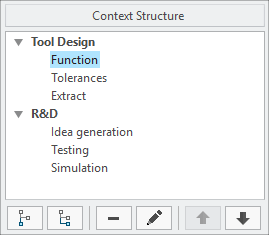
Create or edit a context
- Select Add Sibling
 to create a new context node at the same level or select Add child
  to create a new context node below the current selection or select Edit
  to modify any existing context node
- The Edit Context dialog opens
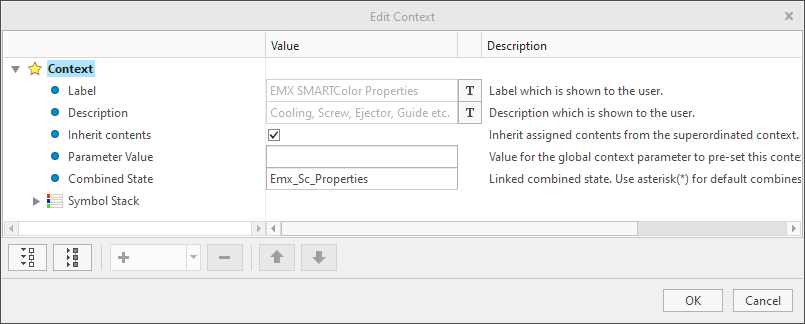
- The Edit Context dialog opens
- Select the Text entry
 button to enter the Label that is displayed in the user dialog.
 - Select the Text entry button to enter a Description that is displayed to the user.
- Check the Inherit contents check box to inherit the content through the tree.
- Enter a Parameter Value for the classification parameter. See the The Classification Parameter for details.
- Enter the name of a corresponding Combined State of the model to establish the relation to the context. (Applicable only to the last node in the branch)
- The Symbol Stack definition is described in the respective page
- Select OK to close the dialog
 Tip
Tip
Delete a context
- Mark any node within your tree structure and select Delete

- A confirmation dialog appears.
- Chose OK and the selected node including all children nodes will be removed from the structure
Reorder context nodes
- Mark any node within your tree structure and use
 or
or  to reorder nodes or branches of your structure