Formatting Options
All Checks and Groups have a configuration option called Display Format which controls the way the results of the check are displayed in the Check Result Window. This option supports entering plain
text and option values from the current checks or from other checks within the same configuration. The option values are accessed
by using specific operators:
Formatting properties
- Switch to the Format tab of the Check Item definition
- The Format properties display
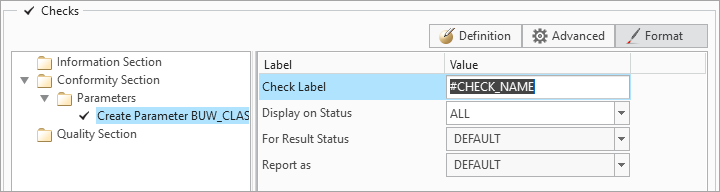
- The Format properties display
The Check Label in the Check Result window
- Adjust the Check Label to match your intention for the Check Result window. This option supports entering plain text and option values from the current
Check Item or from other Check Items within the same configuration. You may use the following operators:
The display of the Check Result Status
The Check Result Status is the value of the check after it was executed:
- When executing a Check the predefined properties of the Check are compared with the properties of the corresponding item of the Creo Model (e.g. Parameter or Feature). After the comparison several results are possible, depending on the predefined properties but also on the conditional settings.
- The result status is represented by a picture which is shown in the report window after running the Check Sequence
- The Check result status is used to either visualize the results in the Check Result Window, or to interpret the condition checks
- Select an option from the Display on Status values, or add multiple status values as a semicolon separated list:
ALLShows the Check Status in the Check Result windowDISABLEDoes not show the Check Status in the Check Result window

NDEF The Check is deactivated due to mismatching condition or category, or the checking routine failed. 
PASS The Check verifies — all predefined properties match with the item properties of the Creo model 
INFO Information checks (only for query checks in information Section) 
WARNING Some or all of the predefined Check properties mismatch the item properties of the Creo model (e.g. Parameter value, or Feature position), and can be corrected within the Update Sequence 
REMOVE Indicates that the found item of the Creo model will be removed within the Update Sequence 
MISSING The item of the Creo model is missing and can be created within the Update Sequence CLEAR???
Tweaking the Result
With the two following options you can tweak the displayed result status in the Check Result window
- Define the result status that you want to tweak, by selecting one option from the For Result Status drop-down list.
- Select a resulting status from the Report As drop-down list, that should be displayed instead of the software offered status