Perform a Batch Update Run
There are different options for updating multiple Creo object via one Update run.
- Updating from a top-level assembly including sub-components
- Updating from a drawing including drawing models
- Batch mode to update from a list of selected Creo objects
 Note
Note
Prepare the Batch Update run
- Choose
 Batch Update from the SMARTUpdate tab to configure the list of models that you want to update.
- The Batchmode dialog opens
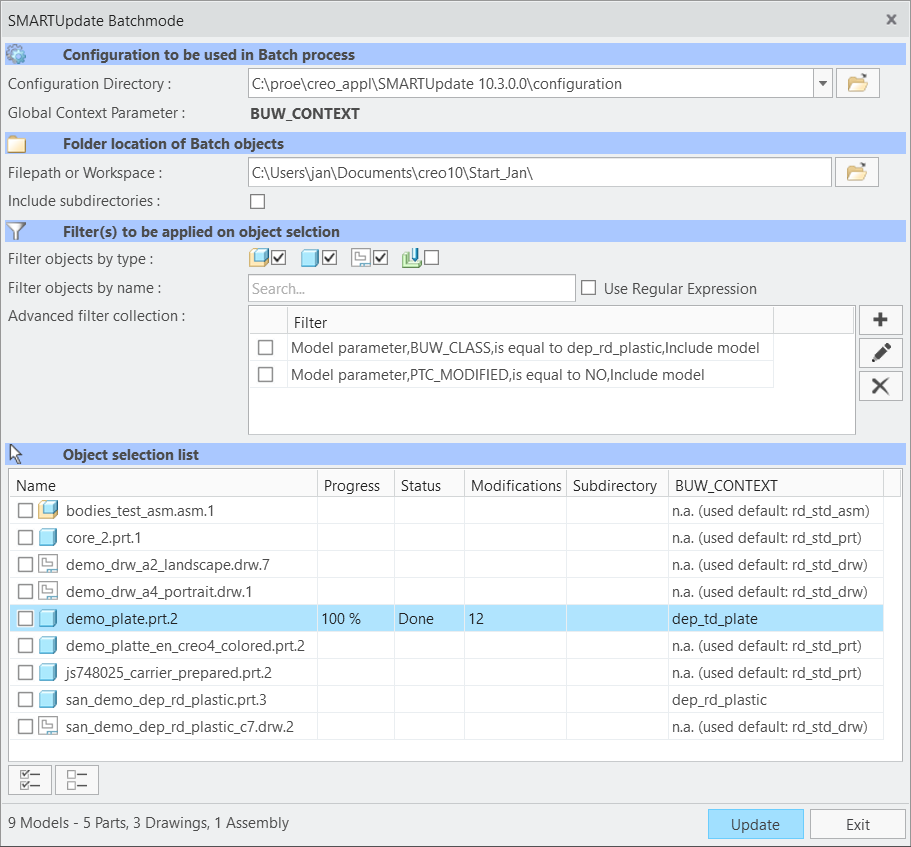
- The Batchmode dialog opens
- The current used Configuration is displayed. Open another configuration, if required.
- Open the Folder location you want to select objects from. You may also specify a Workspace of your choice.Check the Include Subdirectories check-box to include files from subsequent folders.
- (Optional) Prepare the object selection by filtering the displayed objects list. Initially all Creo objects in the specified folder are displayed. The value of the Global Context parameter is displayed in a column. If it is not available, the default context is used.
- Use the check boxes to filter by object type
- Use the input panel to filter by object name. You may also use Regular Expressions to specify the filter criteria.
- Additionally, you can use advanced filter options to use Model parameter or Windchill object attributes.
- A list of existing advanced filters are presented in the dialog
- Select any advanced filter if you want to apply it to the object selection
- Click Add
 to add a new advanced filter. Find details here.
 - Use Edit
 to edit a selected advanced filter.
 - Use Delete
 to a permanently remove an advanced filter from the list.
Execute the Batch Update run
- Select any number of objects from the Object selection list
- Select Update to start the batch update process
- The Update process will start immediately and may take some seconds, depending on the number of Checks and Objects.
- The progress and status is reflected in the Batch Update window
- Close the Update result window when all tasks have been executed.