 New dialog for specifying the insertion area
Workflow to specify the paste range
- Use Define Paste Range
 from the Template set definition dialog to define the Insertion area of your template where the snapshot will be fit into.
- The Paste Range dialog window opens
 Hide or Unhide the preview frame
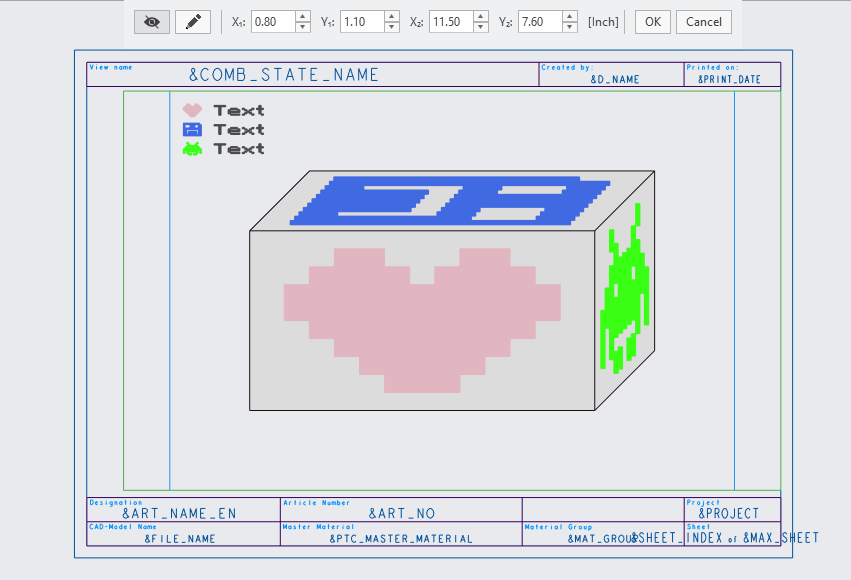
 Dynamically specify the paste range. (LMB to start and stop, RMB to abort).
- The green rectangle defines the maximum paste area of the copied screenshot. The green boundary turns red, if the area is outside the frame and therefore invalid.
- The blue rectangle is the DINAx size that is used to grab from the screen. The displayed model and annotations are visual references.
- (Optional) Enter the intended coordinates for the Insertion area manually. Coordinates are (traditionally) in inch.
- Close the Dialog with OK or Cancel
- The Paste Range dialog window opens
What is the benefit of this enhancement?
- Improve the definition of the paste range
- Allow manual entry for defining the paste range
Additional Information
|
Tips:
|
None.
|
|
Limitations:
|
No known limitations.
|
|
Does this replace existing functionality?
|
It replaces the previous dialog to spefify the insertion area |
|
Configuration options associated with this functionality:
|
None |