Notes
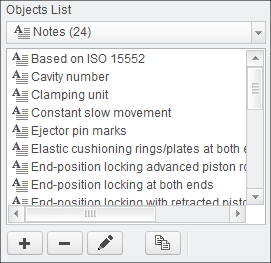
The Notes object contains the definition of an annotation that can be used in drawing mode or 3D mode. The technical means is a Creo
Note.
How it works
A Note is manually placed on the drawing or within the 3D model. The placement coordinates are defined by user placement. The selected
note entities are combined to a single note and can be placed a single item.
Adding Notes
- Select Add new object
 or select Edit existing objects
  or use
  to copy an existing entry and modify from there.
- The Object Edit dialog appears.
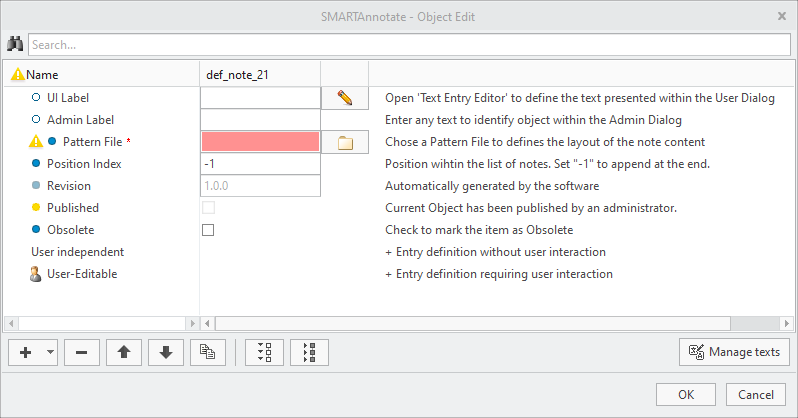
- The Object Edit dialog appears.
- Select
 to enter the UI Label that is displayed in the admin dialog.
 - (Optional) Enter an Admin Label that is used for distinction within the administration dialog.
- Select
 to chose a Pattern File from the /patterns folder.
 - The Revision will be iterated automatically every time you leave the definition dialog with OK and save the configuration.
- Check the Obsolete check box if you want to disable the Std-Annotation. It will remain within the configuration, but not anymore available for user selection.
- For a simple text note without any user interaction select the User Independent section and chose Add new element Add Text
- A new Text entry is created within the Object Edit dialog

- A new Text entry is created within the Object Edit dialog
- Enter the same Prompt that was used in the Pattern file.
- Select to enter the Text Entry representing your final text.
- Check the Translate check box, if this text shall be translated.
- For a text note that requires user interaction (i.e. enter a value) select the User Editable section and chose Add new element Add Value
- A new Value entry is created within the Object Edit dialog. For every value that you want to be display in the UI you have to create a separate Value entry.
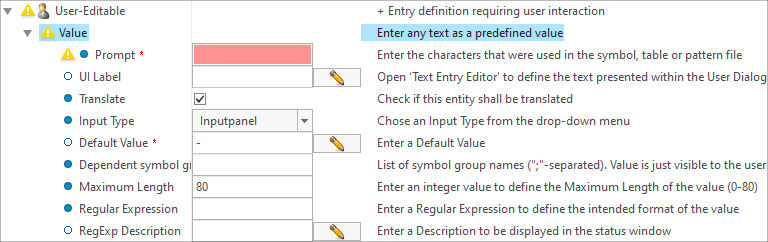
- A new Value entry is created within the Object Edit dialog. For every value that you want to be display in the UI you have to create a separate Value entry.
- Enter the same Prompt that was used in the Pattern file.
- Select to enter the UI Label that is displayed in the user dialog.
- Check the Translate check box, if this text shall be translated.
- Choose the Input Type from the pull-down menu to define how the user can edit the parameter value. You can choose from the
following options:
- Read-Only — Value is displayed, but user cannot change
- Inputpanel — User can type in a value
- Optionmenu — User can select from pull-down menu only
- Optionmenu (editable) — User can select from pull-down menu or can type in a value
- Enter a Default Value. Use ‘-’ for no value.
- If you have selected Optionmenu or Optionmenu (editable) from the Input Type pull-down, you need to add value items to be selected from the pull-down. Choose Add new element Add Text
- A new Item entry is created within the Object Edit dialog

- A new Item entry is created within the Object Edit dialog
- Enter a Value and repeat until you have all intended values